
Create your first gradebook
Data is organized by academic year, class, semester and subject gradebook.
- On the bookshelf, choose School Year, enter a name (for example, 2026–2027) and save. The app creates two semesters.
- Choose + Class and name the class. Gradebooks in the same class share a student list.
- Choose + Gradebook, select the class, semester and subject, then click the book cover to open it.
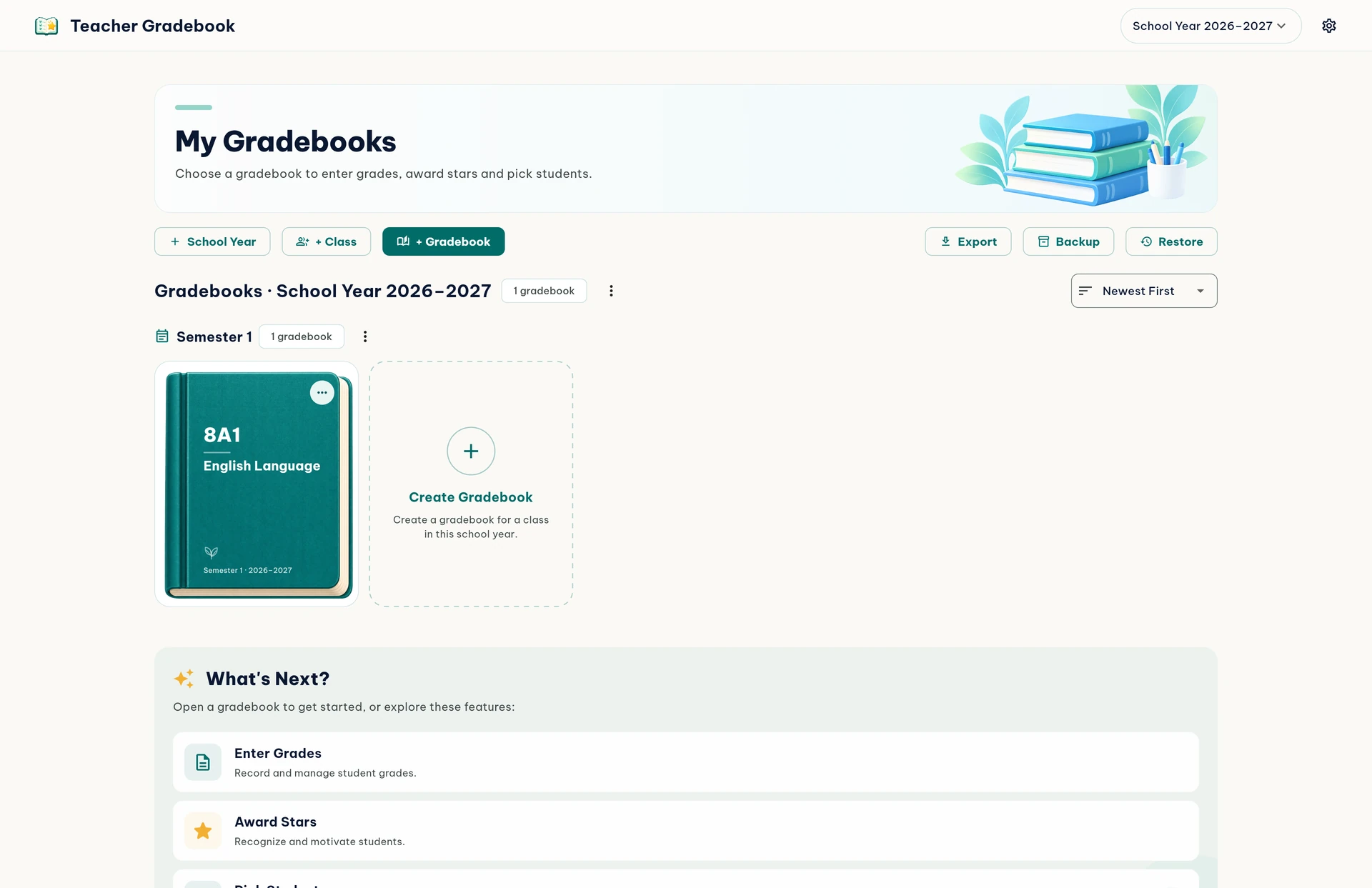
The … menu on a book cover lets you copy its grade groups and columns. The copy does not include previous grades, stars or student selections.
Add and manage students
Add students individually or import the whole class from a spreadsheet.
- In Gradebook, click Add student to enter a name, student ID and any information you need.
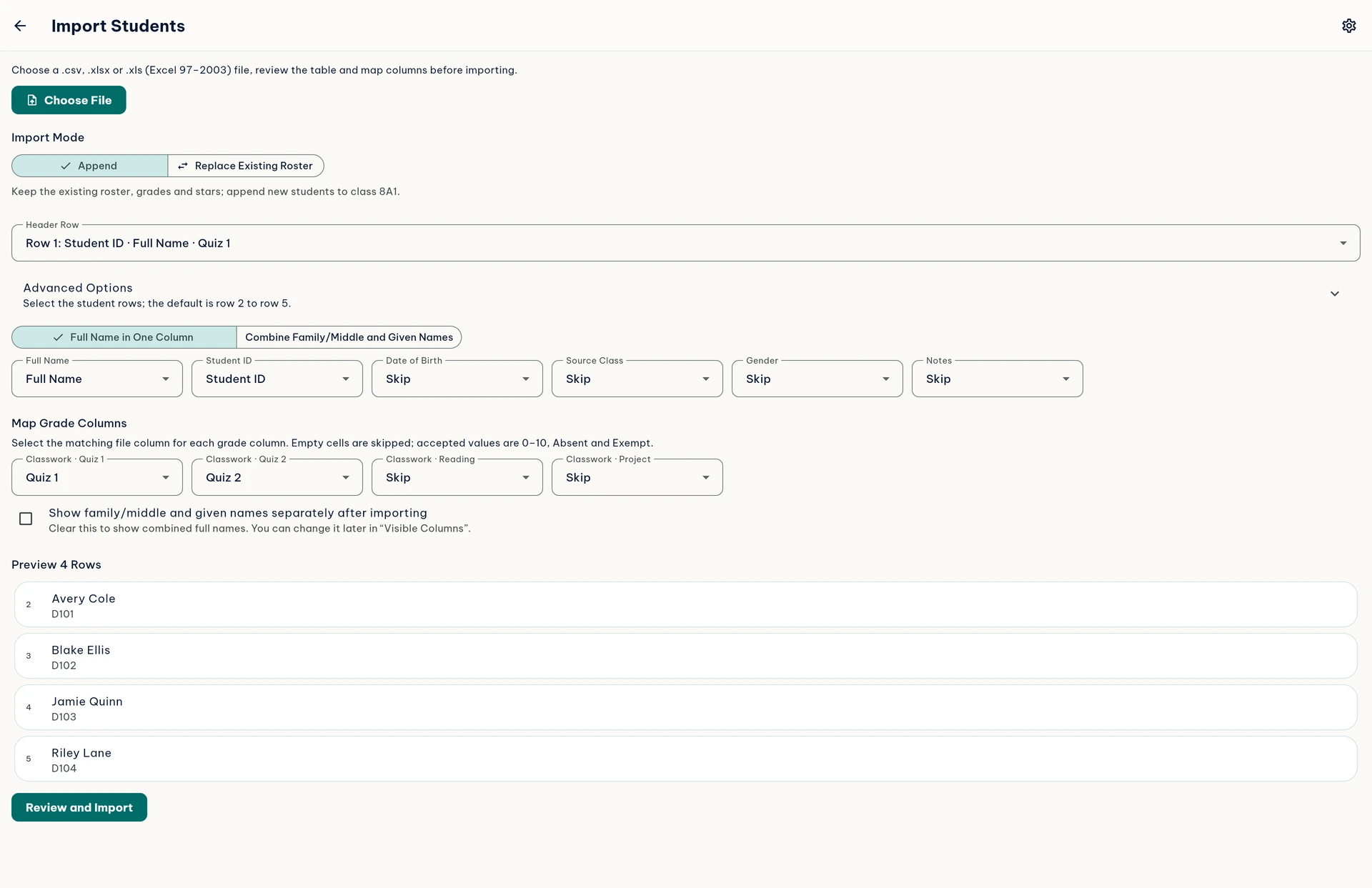
- To add several students, click Import Data, choose a file, then check the header row, column mapping and preview.
- To edit or remove a student, open the … button at the end of their row and choose Edit information or Delete student.
Append keeps the existing list. Replace existing list replaces the shared student list and deletes the previous students’ grades, stars and history in the class’s gradebooks. Preview the changes and make a backup before confirming.
Grade groups and columns
Set up your calculation method before entering grades.
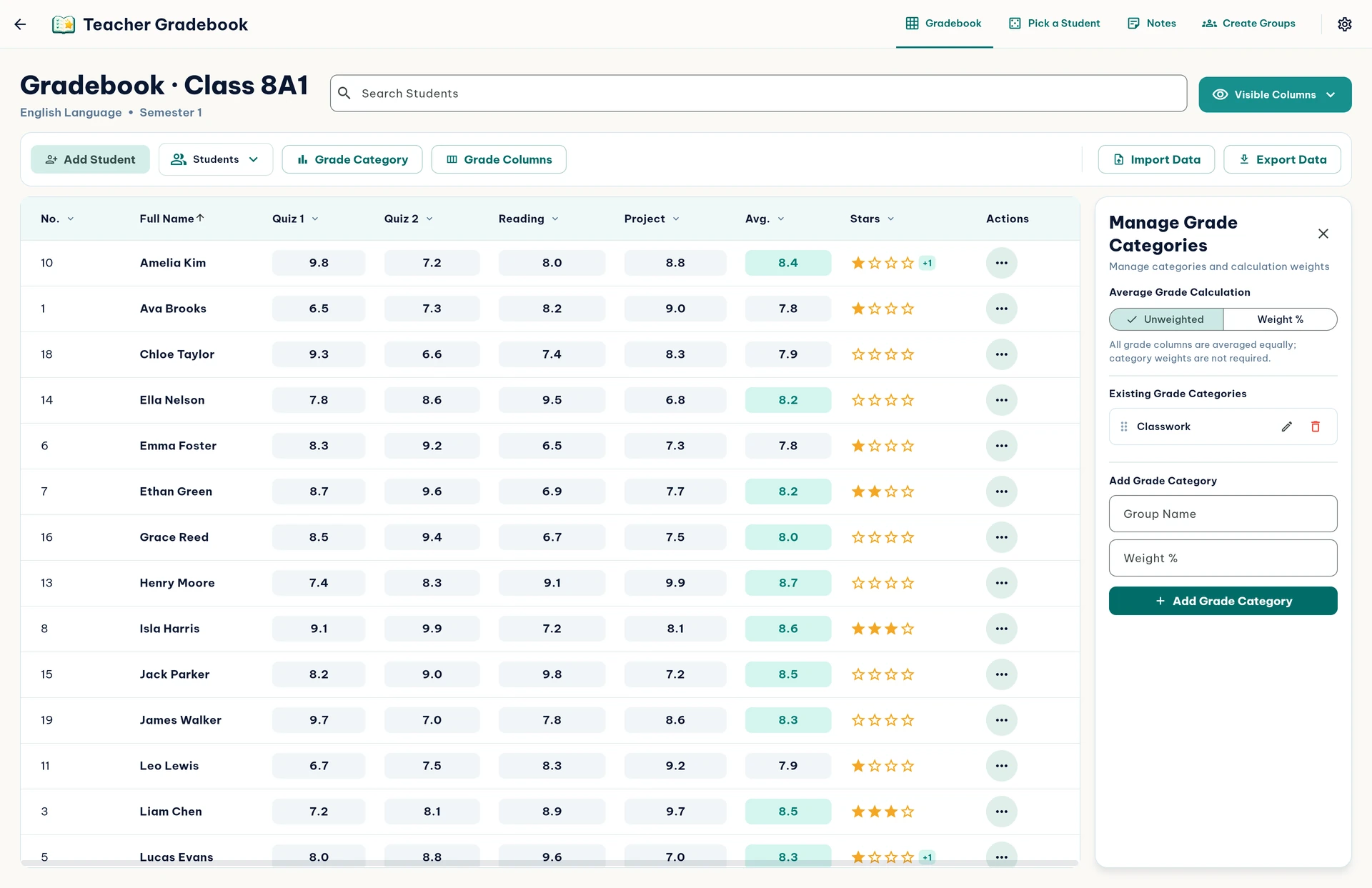
- Click Grade Category and add groups such as “Ongoing assessment” or “Midterm”.
- Choose Unweighted to give each grade equal weight. If you choose Weight %, the group weights must total 100%.
- Click Grade columns, enter a column name (for example, TX1), select its group and save. You can edit, temporarily delete and restore groups or columns in the management panel.
Enter and review grades
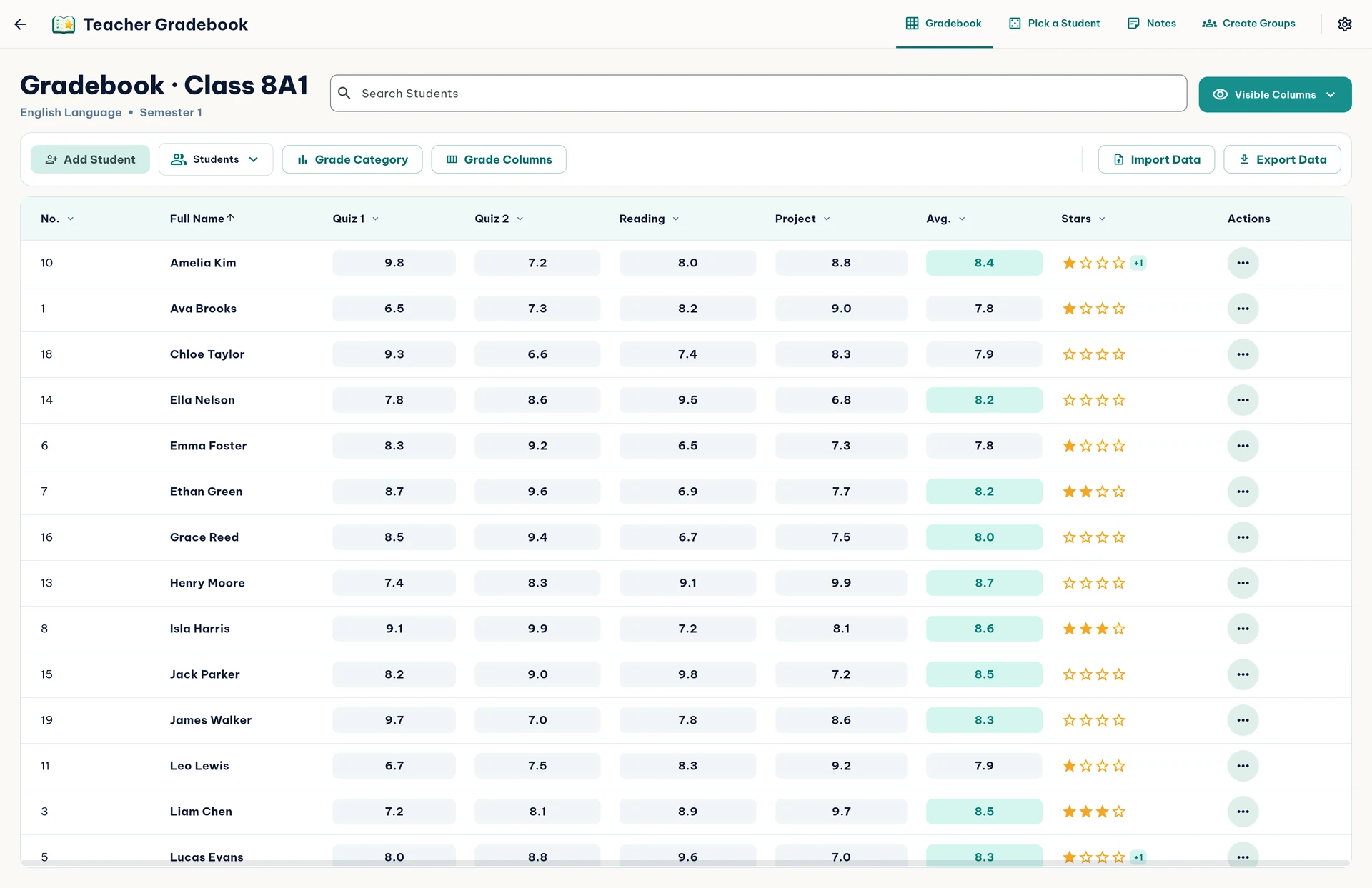
Each row is a student; each column is a grade item you have created.
- Click a grade cell to enter a score from 0 to 10; you can also choose Absent, Exempt or leave it blank.
- Use Search Students to filter quickly. Click a column heading to change the sort order.
- Open Visible Columns to hide or show list numbers, names, student information, individual grade columns, Average and Stars.
Stars and reward points
Recognize participation directly from a student’s row.
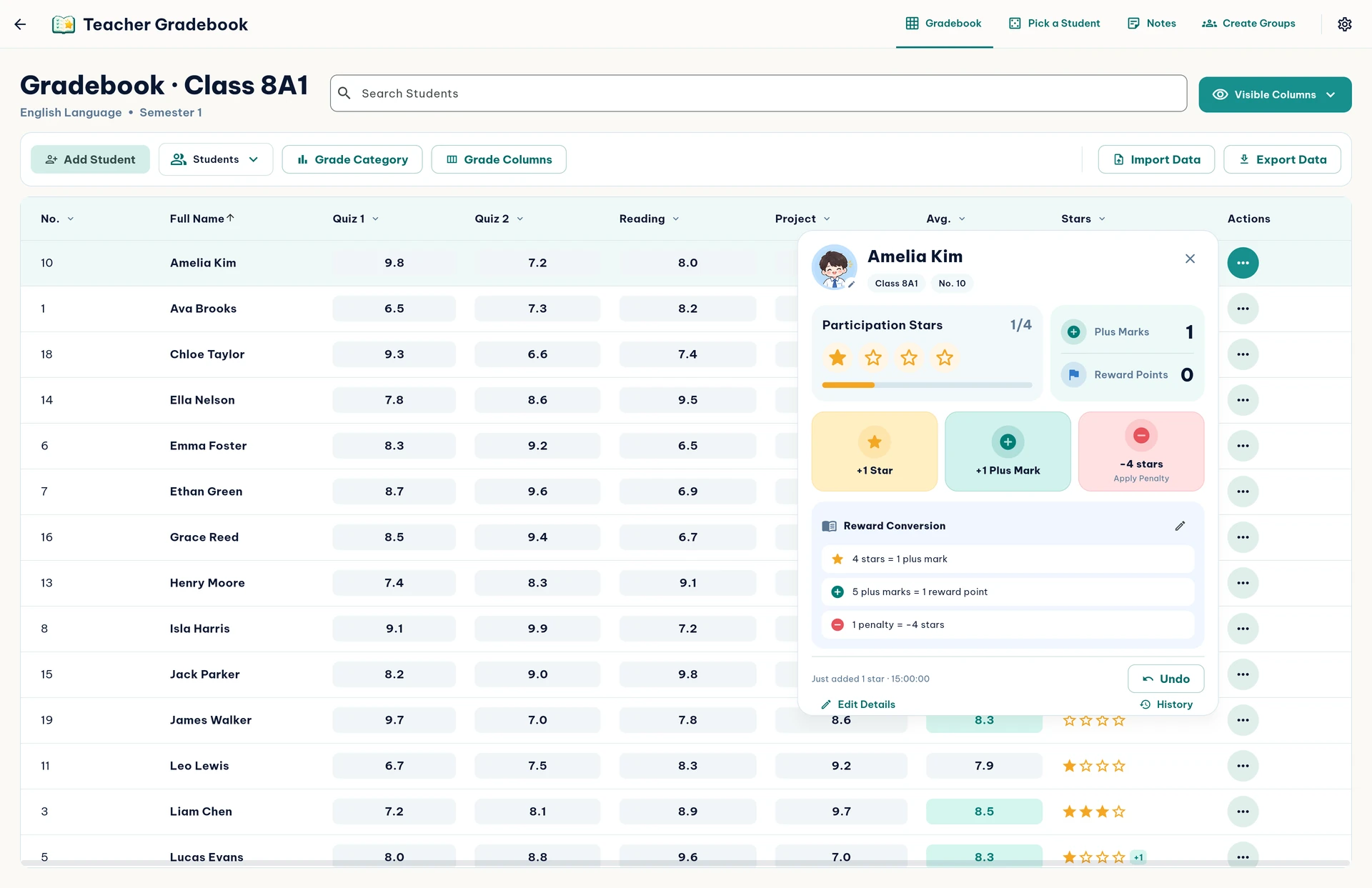
- In the Actions column, click … on a student’s row.
- Choose +1 Star, +1 Plus Mark or Apply Penalty. The number of stars deducted is shown on the penalty button. This panel also includes History and Undo.
- Click the edit icon next to Reward Conversion to customize the gradebook’s rules. By default, 4 stars = 1 plus mark, and 5 plus marks = 1 reward point.
Choose students at random
Three selection methods share the same student list and history within a session.
- Open the Pick a Student tab, then choose Lucky Wheel, Draw Lots or Lottery.
- Turn on No repeats to select each student only once per session. You can also turn sound off or reduce motion.
- Click the start button. The result shows the student’s list number and name. Choose History to review earlier selections or New session to start again after confirming.
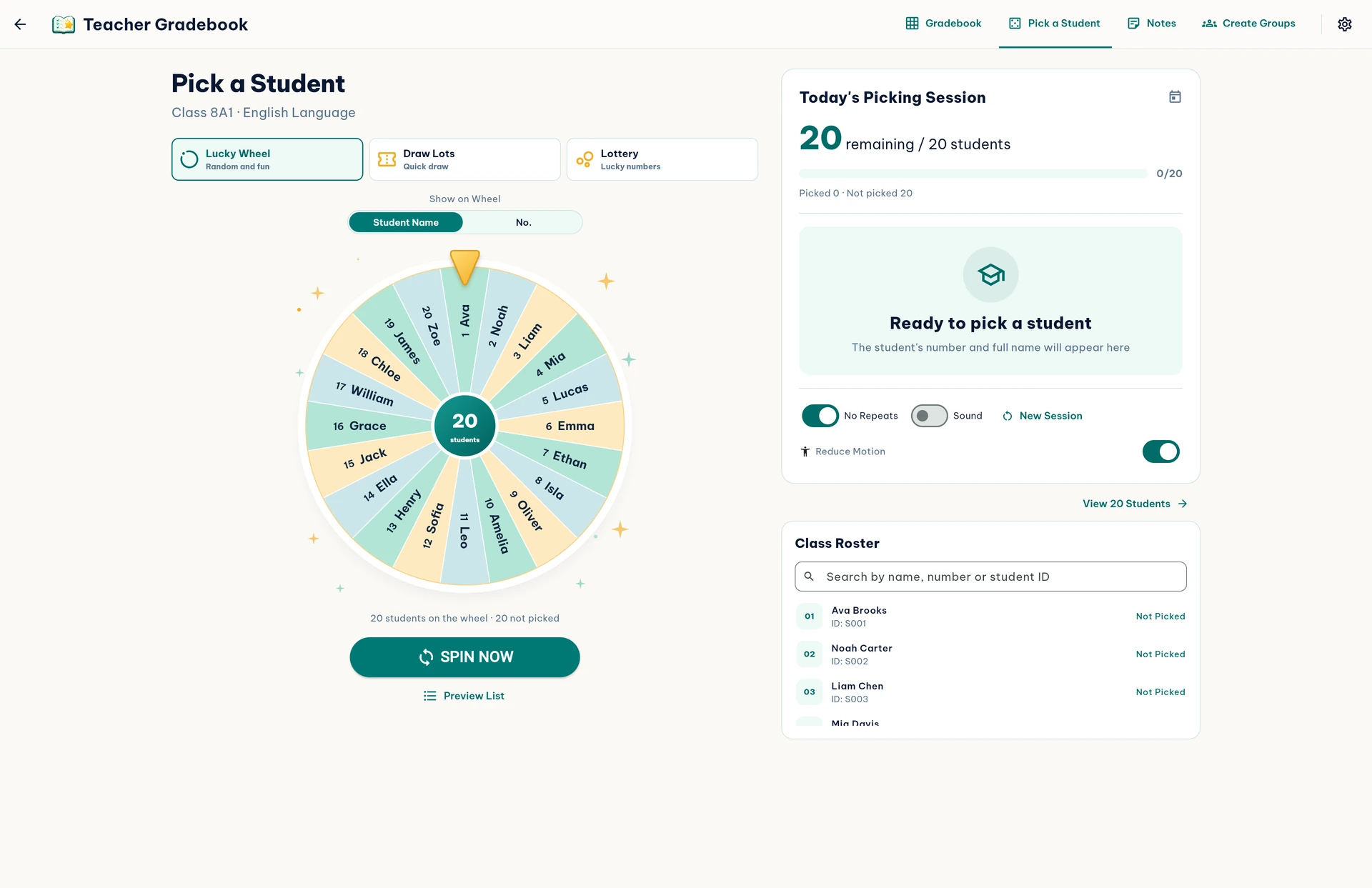
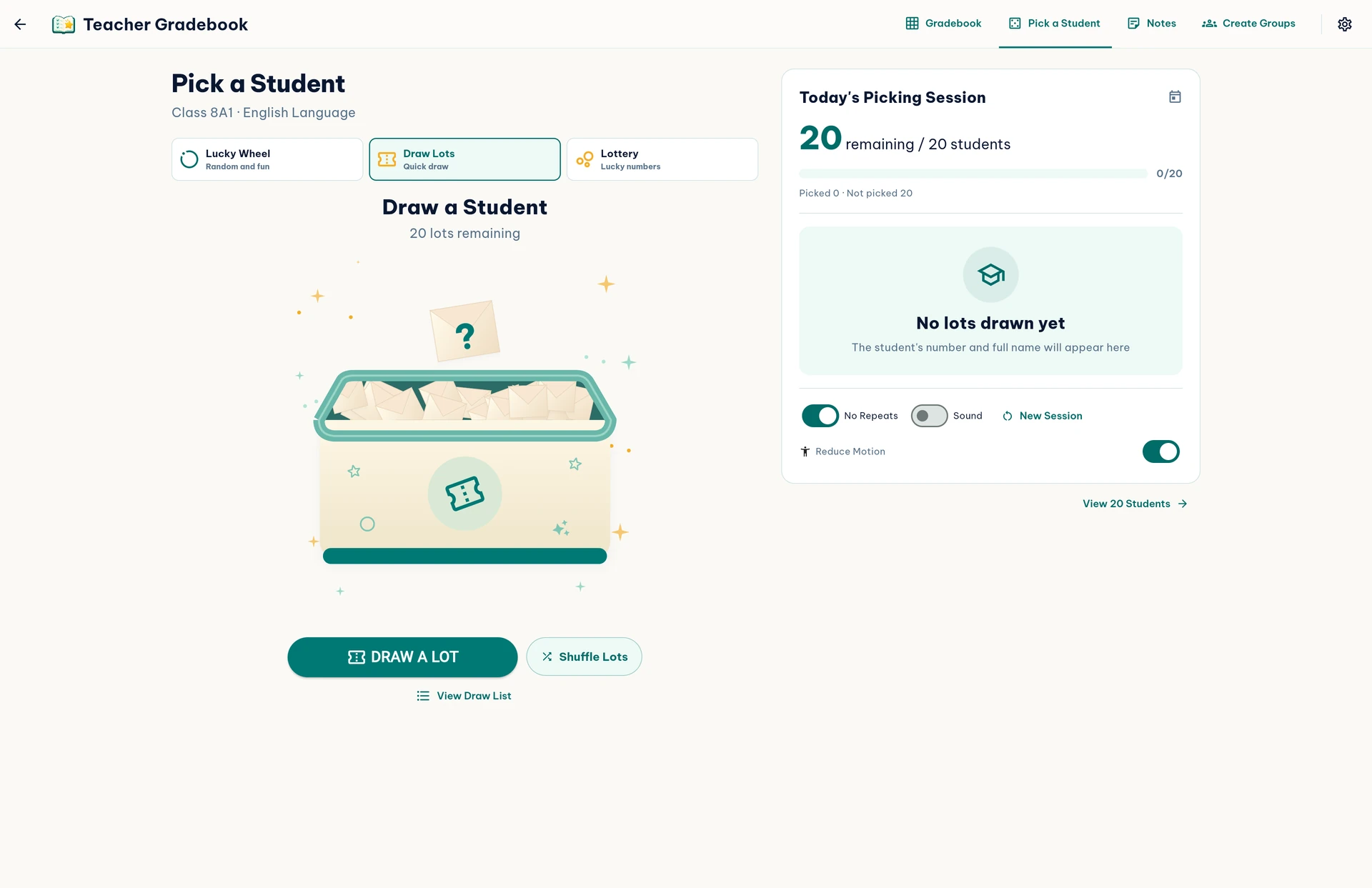
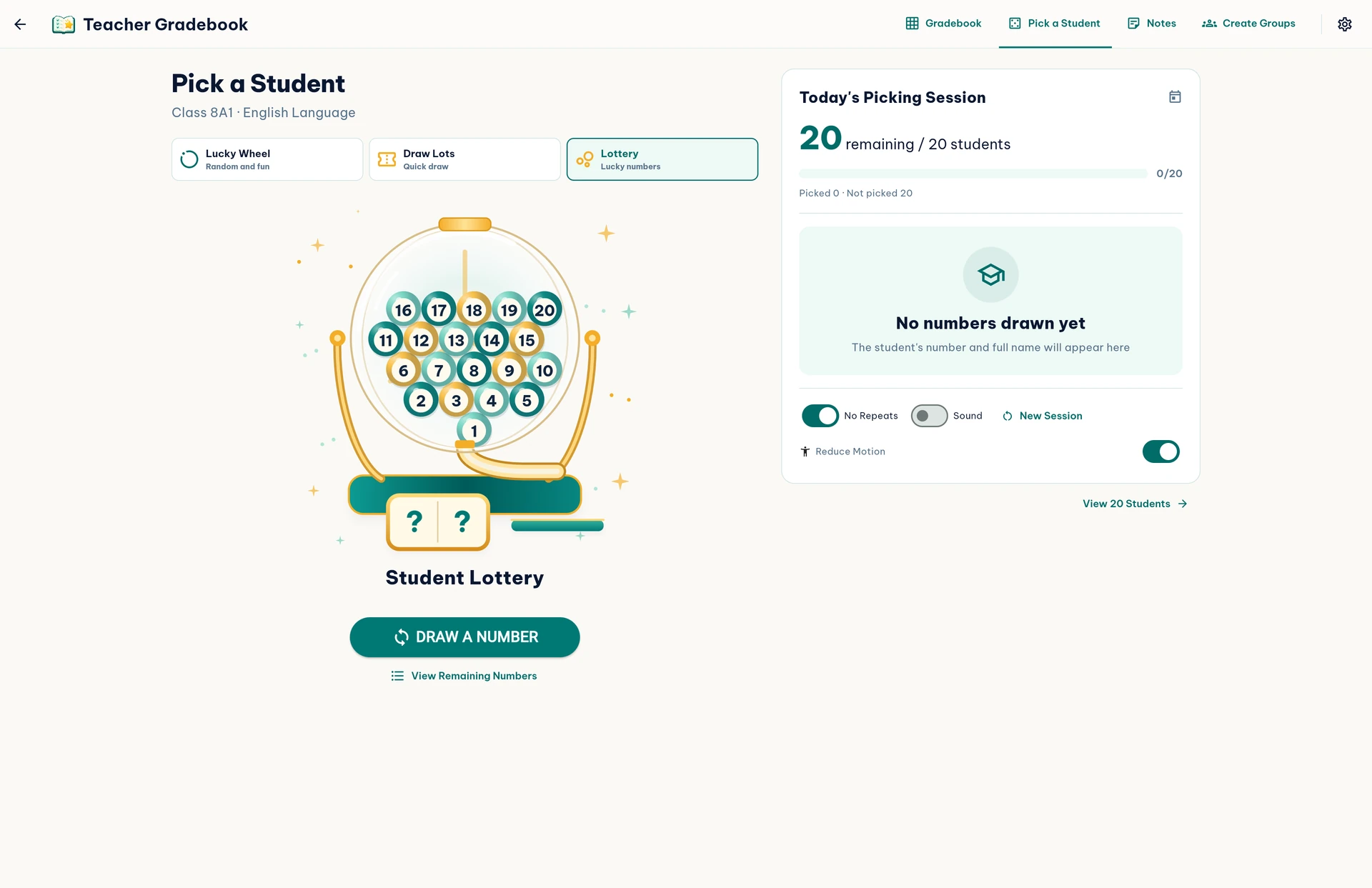
Selection sessions reset automatically at 06:00 each day in Vietnam time; previous session history is retained.
Notes, checklists and reminders
Keep your to-do list alongside your class gradebook.
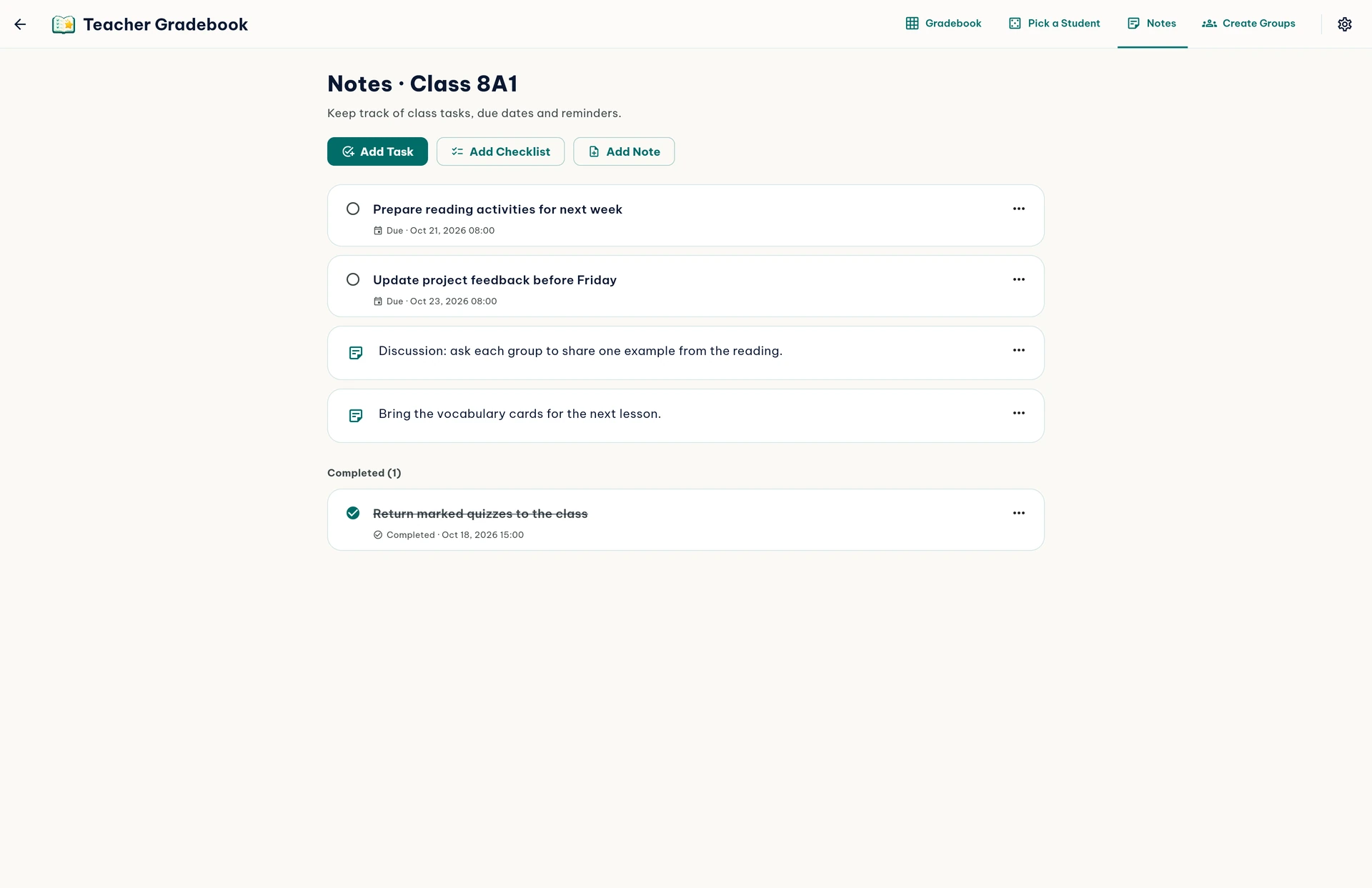
- Open Notes, then choose Add note, Add task or Add checklist.
- Enter the content. For tasks, you can add a due date and reminder time. Mark a task complete to move it to the completed group.
- On macOS and iOS, you can link items to Calendar or Reminders after granting the required system permission.
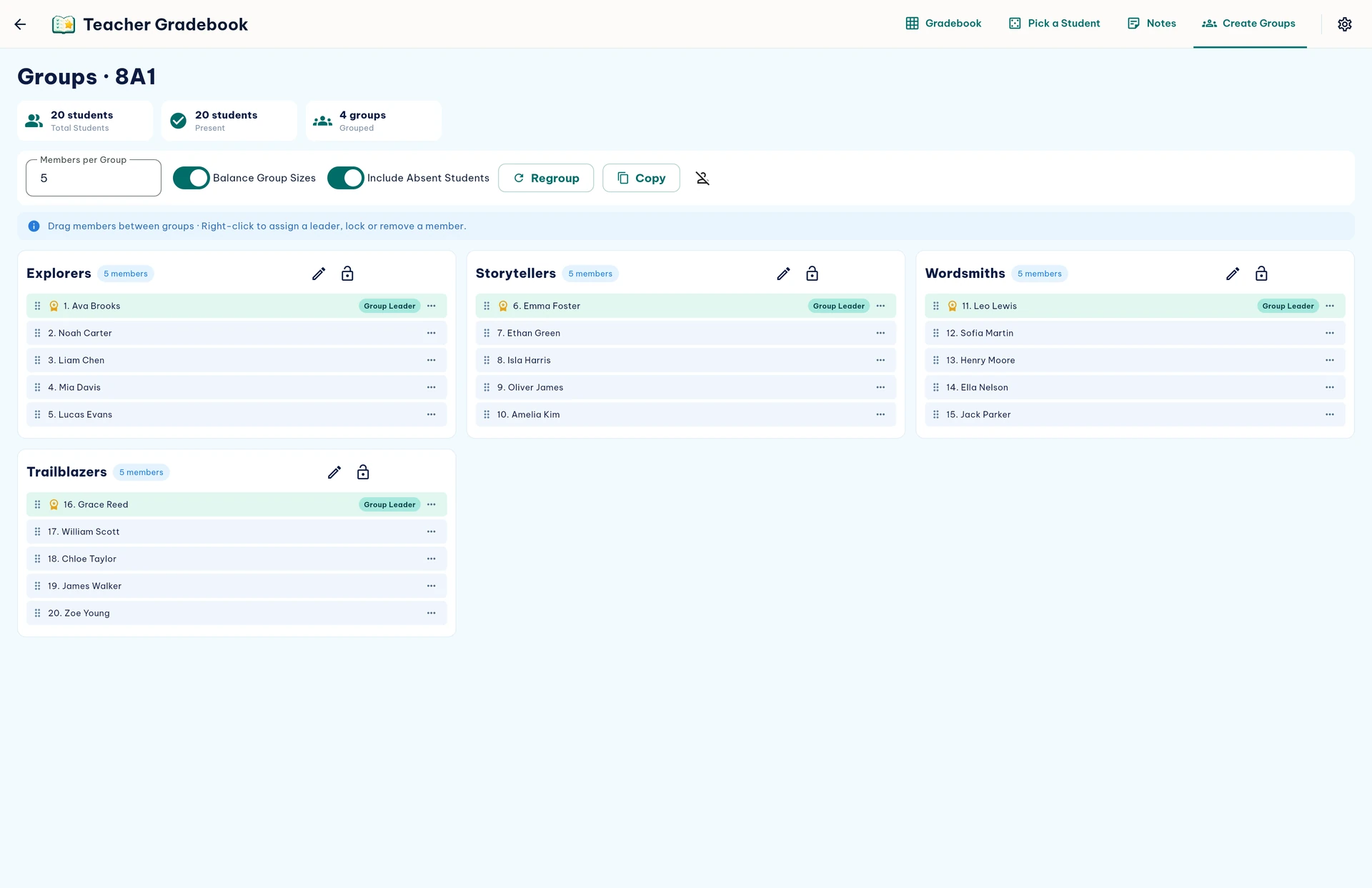
Group your students
Quickly create groups from the class list you have open.
- Open Create Groups and enter the Members per group.
- Set Balance Group Sizes and Include Absent Students, then click Create Groups (or Regroup if groups already exist).
- You can drag members between groups, choose a leader, lock members, Regroup or Copy the results.
Import and export spreadsheets
Use spreadsheets to transfer student lists or share grades.
Import a student list
Choose Import Data in a gradebook. The app accepts .csv, .xlsx and .xls files. Check the header row and map information and grade columns, then review the preview.
Export data
Choose Export Data in a gradebook to export its grades. On the bookshelf, Export opens export options for the academic year.
Back up and restore
Make a backup before replacing a student list, moving to another device or updating the app.
- On the bookshelf, click Backup and save the JSON file somewhere you control.
- To recover data, click Restore, choose the correct file and review the number of academic years and students shown by the app.
- Confirm only after checking: restoring replaces the current data. The app creates an additional safety backup before replacing it.
Backup files are not currently encrypted and may contain student information. Do not upload them to public locations.
Use it in your browser
The Web version works similarly, but data is stored for each browser and website address.
Where is the data stored?
Web data is stored in your browser. Changing browsers, profiles or website addresses, or clearing site data, may mean you can no longer see previous gradebooks.
Move from Mac to Web
Click Backup on your Mac, open the Web version and use Restore with the JSON file. Automatic cross-device sync is not currently available.
Contact support
A support address will be published before release. Administrators can set the email address under Application Settings in the Admin Panel.